

YOUR DEPLOYMENT JOURNEY
- You have gained the necessary resource access and permissions required for deployment.
- You have created a Semgrep account and organization.
- You have connected your source code manager.
- Optionally, you have set up SSO.
- You have successfully added a Semgrep job to your CI workflow with diff-aware scanning.
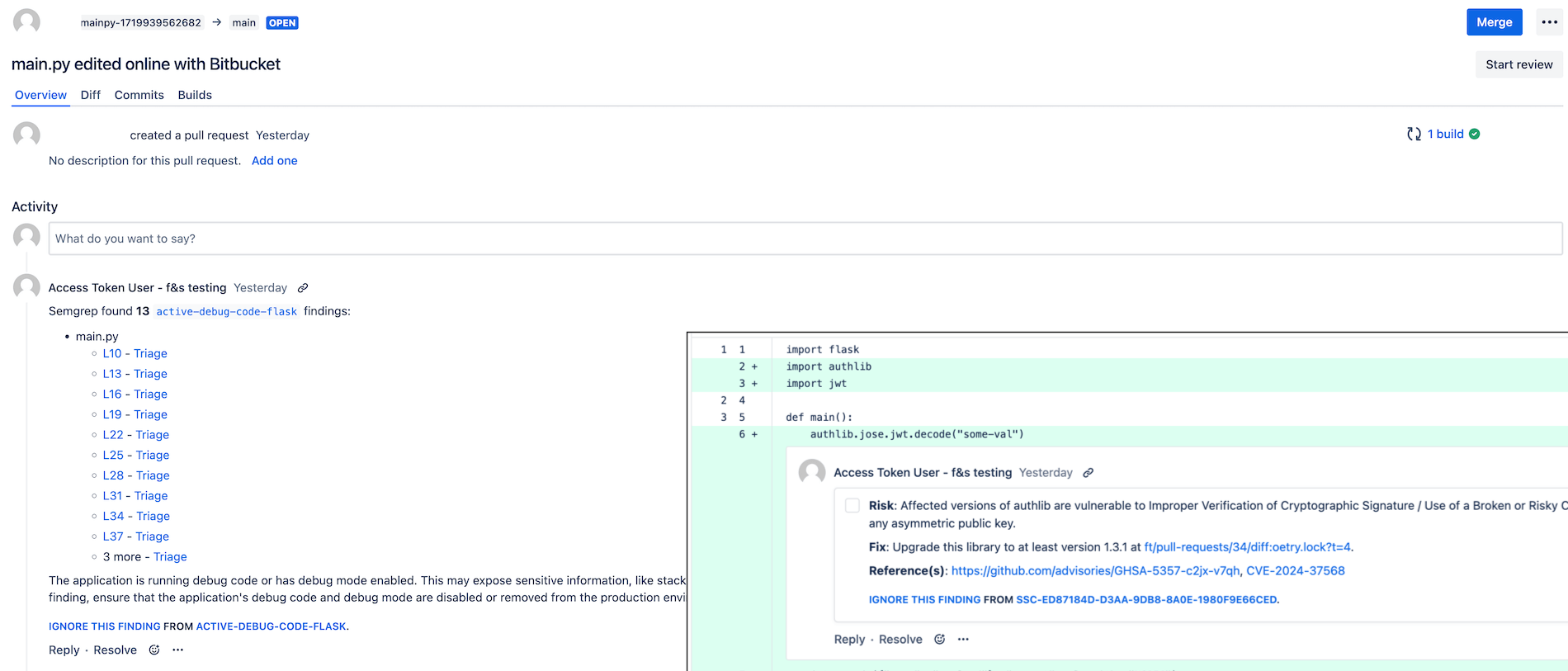
Bitbucket Data Center pull request comments.
Conditions for PR comment creation
PR comments appear for the following types of scans under these conditions:Enable PR comments in Bitbucket
Prerequisites
- You must have a Bitbucket Data Center HTTP access token. Ensure that the HTTP access token that you create has been granted Project write permissions. You’ll provide this token to your CI provider during the setup process.
- Semgrep has been tested with Bitbucket Data Center v8.19. If you are using a different version of BBDC and there are issues, please reach out to support.
Confirm your Semgrep account’s connection
Confirm that you have the correct connection and access:1
In your Semgrep AppSec Platform account, click Settings > Source code managers.
2
Check that an entry for your Bitbucket project exists and is correct.
Triage through PR comments
Developers can triage Semgrep findings without leaving Bitbucket by responding to the PR comments authored by Semgrep. Semgrep requires Bitbucket Data Center source code manager (SCM) connections to use an HTTP access token with Project admin permissions, so your connection may already use an appropriate token. If you do not, to update your connection between Semgrep and Bitbucket Data Center:1
Ensure that you’re using Bitbucket Data Center version 8.8 or later.
2
Log in to Bitbucket using an account assigned with the Project Admin role.
3
See Bitbucket Data Center HTTP access token requirements to create or update your token.
4
Return to Semgrep and sign in.
5
Go to Settings > Source code managers, and find your Bitbucket connection.
6
Click Update access token.
7
In the Update access token dialog that appears, provide the new token you created. Click Update to save and proceed.
8
Toggle the Incoming webhooks setting on.
Configure PR comments
Once you have set up the connection between Semgrep and Bitbucket, you can create a remediation policy that lets you define the conditions under which Semgrep leaves a pull request comment. This customization enables you to:- Manage the amount of PR comments your developers receive.
- Ensure that only rules that meet your criteria, such as high severity or high confidence rules, produce comments visible to developers, reducing noise.
Optional features
Customize PR comments
You can customize the comments Semgrep leaves on your PR. Custom comments allow you to direct your teams to the resources they need to handle the vulnerabilities Semgrep identifies in their code. To provide custom PR comments:1
Sign in to Semgrep AppSec Platform.
2
Navigate to Settings > General > Global.
3
Go to the Custom PR/MR comments footers section.
4
Provide a custom comment for each Semgrep product whose findings you want to generate a PR comment. Semgrep supports Markdown and plaintext links in your message.
5
Click Save changes.
Enable Rule-defined fix in Bitbucket Data Center repositories
Autofix is a Semgrep feature in which rules contain suggested fixes to resolve findings. To enable Rule-defined fix for all projects in your Semgrep AppSec Platform organization, follow these steps:1
In Semgrep AppSec Platform, go to Settings > General > Code.
2
Use the Rule-defined fix toggle to enable this feature.
Next steps
You’ve finished setting up a core deployment of Semgrep 🎉.- Explore recommended tasks after deployment in Beyond core deployment.